Here are a couple ideas you can use to assess you students that will hopefully engage them more than a paper/pencil exam.
Showing posts with label Google Apps for Education. Show all posts
Showing posts with label Google Apps for Education. Show all posts
Fun Formative (and Summative) Assessment Ideas
When someone says the word assessment the majority of educators and students automatically think 'test.' While tests are apart of assessments, it is only a small portion. There are multiple ways that we can assess students understanding that doesn't require multiple choice questions. After all, does multiple choice questions really tell us as educators whether a student truly understandings the content.
Here are a couple ideas you can use to assess you students that will hopefully engage them more than a paper/pencil exam.
Here are a couple ideas you can use to assess you students that will hopefully engage them more than a paper/pencil exam.

Mash-up: Online Article + Google Drawing = Blackout Poetry
If you haven't heard of Blackout Poetry, please check out the Austin Kleon website and Newspaper Blackout website. The concept is simple, but loads of fun and I felt empowered after my poetry creation.
You can preselect the newspaper article or allow students to find an article of their choosing. While I am all about allowing students choice, I would be intrigued to see all of the poems that would come from one piece of published writing.
Tools you will need:
I wouldn't by any means consider myself a poet, but within 10 minutes I was able to take a screenshot of an article - the first one I came across - put it into Google, and create a poem. It might not be the best, but I am proud of my poem.

Here is a video that will show you how students can perform this same activity.
What a fun way to get students engaged in writing and creating masterpieces from someone else's published thoughts.
You can preselect the newspaper article or allow students to find an article of their choosing. While I am all about allowing students choice, I would be intrigued to see all of the poems that would come from one piece of published writing.
Tools you will need:
- Computer with internet access
- Newspaper Website (any will do)
- Screenshot tool (on the computer or Chrome extension, such as Awesome Screenshot)
- Google Drawing
I wouldn't by any means consider myself a poet, but within 10 minutes I was able to take a screenshot of an article - the first one I came across - put it into Google, and create a poem. It might not be the best, but I am proud of my poem.

Here is a video that will show you how students can perform this same activity.
What a fun way to get students engaged in writing and creating masterpieces from someone else's published thoughts.
Adding Audio Files to Google Classroom
There are a couple options for adding audio files to your Google Classroom and having students access that audio file. You can add an audio file that you have already placed into your Drive or you can attach an audio file from your computer. You can create audio files using Vocaroo. Check out my tutorial on this tool.
Some ways for teachers to use audio files in class:


Some ways for teachers to use audio files in class:
- oral administration of assignment
- read a story
- audio version of notes
- recorded lesson
- famous speeches


Students can also record their own audio file and upload and turn it in via Google Classroom.
If you need extra assistance with Google Classroom, please check out my resource that shows both the teacher and student view.
The Power of Google Drawing (with templates)
Google Drawing is the Drive tool least used, yet in my opinion is one of the best. Here is an example of a visual I created with Drawing.

Students can use Google Drawing to create:
In addition to above, teachers can use Google Drawing to create:
Here is a direct link to my folder with 30+ templates you can copy.
Video Tutorial
The video tutorial below will show you some neat features of Google Drawing. In this video you will learn how to:


Students can use Google Drawing to create:
- book covers
- story illustrations
- thinking maps/graphic organizers (templates)
- posters
- visuals of vocabulary words
- visuals to demonstrate understanding
- visual representations for math (fractions, number lines, geometric figures, etc.)
- comic strips (template)
- interactive image maps (similar to Thinglink)
In addition to above, teachers can use Google Drawing to create:
- newsletters (template)
- classroom posters
- 'Which One Doesn't Belong' starters (template and example)
- 'Can You Guess the Word?' starters (example)
Here is a direct link to my folder with 30+ templates you can copy.
Video Tutorial
The video tutorial below will show you some neat features of Google Drawing. In this video you will learn how to:
- change the background color
- create shapes in various colors
- draw lines
- mask images (see example below)

- create word art
- make drawing interactive with hyperlinks
Mash-Up: New Google Forms + Flubaroo = Grading Time Saver
There are several Google Form and Flubaroo videos out there, but I couldn't find one showcasing the new Google Forms with the last updates to Flubaroo. I created a couple tutorials, one with the new forms look and one with the old forms look. Both videos highlight the grading by hand feature in Flubaroo.
New Google Forms + Flubaroo updates video:
'Old' Google Forms = Flubaroo Updates:
If you want to use Flubaroo with multiple classes, you will need to make sure that you make a copy of the Google Forms assessment for each of your classes. This will keep the students grades on separate spreadsheets.
If you want to learn more about the new Google Forms, check out my tutorial here.
New Google Forms + Flubaroo updates video:
'Old' Google Forms = Flubaroo Updates:
If you want to use Flubaroo with multiple classes, you will need to make sure that you make a copy of the Google Forms assessment for each of your classes. This will keep the students grades on separate spreadsheets.
If you want to learn more about the new Google Forms, check out my tutorial here.
Newest Features in Screencastify
Screencastify is one of my go-to tools for screen recording because it is so easy to use and uploads to Google Drive or YouTube automatically. The free version allows you to record video up to ten minutes.

The extension recently had an update that now allows the recorder to highlight important areas on the screen with a mouse pointer or pen feature. Here is a quick video that will show you the latest updates.
If your Screencastify hasn't made the update you can right click on the Chrome extension, remove from Chrome and then re-add in from the web store.
The new tab tools (mouse pointer and pen) work on the majority of websites. If you start recording and the tools don't appear you know you have found one of those websites where the tools are not enabled.

The extension recently had an update that now allows the recorder to highlight important areas on the screen with a mouse pointer or pen feature. Here is a quick video that will show you the latest updates.
If your Screencastify hasn't made the update you can right click on the Chrome extension, remove from Chrome and then re-add in from the web store.
The new tab tools (mouse pointer and pen) work on the majority of websites. If you start recording and the tools don't appear you know you have found one of those websites where the tools are not enabled.
15 Integration Ideas for Teaching with Maps
Last Tuesday's #gafechat discussion I posed various scenario questions. One of the questions pertained to students learning about various locations in the world via maps.

Here are the technology integration ideas that stemmed from our discussion.
Have the students...

Here are the technology integration ideas that stemmed from our discussion.
Have the students...
- use Periscope to see the world through the eyes of someone else. (
- use My Maps to build collaborative maps with placemarks, video and images. (
- show the different locations with streets, buildings, etc. via Google Earth.(
- take a screenshot of the map using Awesome Screenshot Minus and annotate/add text. (
- build a tour around the world using Google's TourBuilder, so they can add text, images, videos and more. (
- add maps to a Google Drawing or Google Slides and collaboratively add information about the location. (
- build a map using Google Maps and a Fusion Table. (
- explore the locations via Google Maps/Earth street level. (
- find locations via a scavenger hunt on Google Maps that ties to political and cultural geography. (
- use Screencastify to record a video explaining how they used websites to identify the locations. (
- identify locations via GeoGuessr, a game that requires you to guess a particular location based on street view. (
- create an interactive map using batchgeo.com and Google Forms. (
- label a map using Thinglink - a tool that allows you to add text, videos, images and more. (
- use Google Cardboard to experience locations around the world. (@LISDTechie)
- use Scribble Maps to build an interactive map. (@LISDTechie)
Here are some addition resources to help with your integration:
Around the World in 60 Minutes by Michelle Armstrong
Example using Fusion Table (shared by
Google Forms Has a New Look
Google has done it again, they have made another big change and this time it is to Google Forms. It looks completely different.
If you are in a Google Apps for Education district, you might not have access to it yet, as your Google Domain Administrator might have it set to 'scheduled release' as opposed to 'rapid release.' See below image for descriptions.

Whether you have access to the new Google Forms look now or it is coming in a couple weeks, here is a guide to help you become familiar to all the changes.
If you are in a Google Apps for Education district, you might not have access to it yet, as your Google Domain Administrator might have it set to 'scheduled release' as opposed to 'rapid release.' See below image for descriptions.

Whether you have access to the new Google Forms look now or it is coming in a couple weeks, here is a guide to help you become familiar to all the changes.
Great Websites to Find Royalty Free/Creative Common Images
Many people forget that using someone else's image can violate copyright law. Here are some websites teachers and students can use to ensure they aren't breaking the law.
Google Images
When finding an image on Google, it is important to change the usage rights to ensure the image is free to use.

If you plan on changing the image in any way make sure to select one of the 'with modification' options.
Pixabay
This site has nice royalty free images and you can log in with your Google account.
Pics for Learning
Find safe photos to use in class with no login required. You also have the option to save the image to your Drive.
Photos for Class
This site has safe G rated images from the the makes of Storyboard That. There is no login required to download the images.
Check out my page for more websites with creative commons photos. Happy image hunting!
Google Images
When finding an image on Google, it is important to change the usage rights to ensure the image is free to use.

If you plan on changing the image in any way make sure to select one of the 'with modification' options.
Pixabay
This site has nice royalty free images and you can log in with your Google account.
Pics for Learning
Find safe photos to use in class with no login required. You also have the option to save the image to your Drive.
Photos for Class
This site has safe G rated images from the the makes of Storyboard That. There is no login required to download the images.
Check out my page for more websites with creative commons photos. Happy image hunting!
Revision History: Great Feature in Google Drive
Revision history gives teachers and students a record of the additions, changes and deletions that are made on a Google document, spreadsheet, slide, or drawing. You must be an owner of editor of the file in order to access revision history.
Here is a quick demonstration on how it works:
Here is a quick demonstration on how it works:
Photos to Slideshow in No Time Flat!
Here is a tutorial on how you can take photos from your phone/tablet and quickly turn them into a YouTube slideshow.
There are also some advanced features you can use to make your slide show more personal. Here is how to add text to your slideshow:

There are also some advanced features you can use to make your slide show more personal. Here is how to add text to your slideshow:

Favorite Chrome Extensions - Week of May 25th
I started my journey of blogging about my favorite Chrome extensions back in August 2014. Each week for the past nine months I have blogged about four extensions that I felt teachers and students should know about. While I have enjoyed my journey of discovering and sharing all these wonderful resources, I feel it is time for this journey to come to an end. While I will continue to blog about Chrome extensions periodically, this will be my last official 'Favorite Chrome Extensions of the Week' post.
With that being said, I hope you have found these posts beneficial. People say that you always keep the best for last and I truly feel that this post might be the best. The first three extensions showcased below can be game-changers in the classroom. Enjoy!!!
#1: Google Tone
Type: Accessibility
Summary: This is a new Chrome extension that will transform the way that teachers share online resources with students. The extension is similar to the app Chirp in that it allows someone to transmit a URL to other people via sound. All parties must have the extension downloaded and enabled for it to work. When you want to share a URL, simply click the extension icon and every computer within earshot will receive a popup with a link to the URL.
#2: DocentEDU
Type: Social & Communication
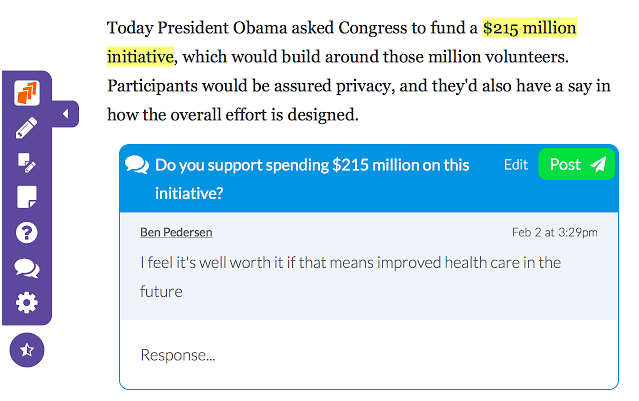
Summary: This extension allows you to easily highlight text, add comments, embed videos, and add discussion to an online website. Assign the websites with the added resources to students. This extension is great for adding to already existing information. Teachers can create all inclusive lessons with this extension.
#3: Appear.in
Type: Social & Communication
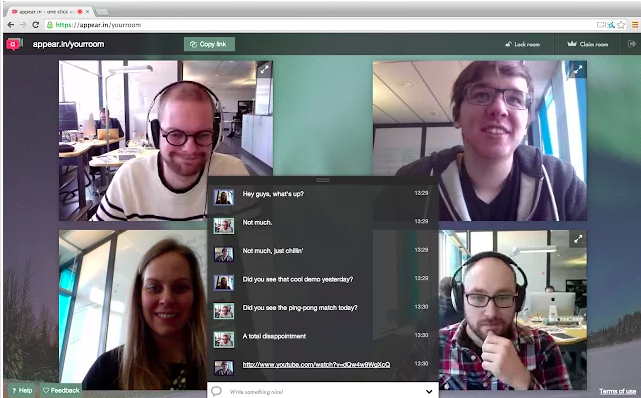
Summary: I just recently learned about this website/extension and I see so many possibilities. Appear.in lets you start a video conversation with anyone right in the browser, without the need to download and install anything, or register an account. Invite up to 8 people to a video conversation just by sending them a link. You can claim a 'room,' which means that you have that URL to use whenever you need. You can share your screen with the viewers which is great for demonstrations or tutorials.
#4: Silver Bird
Type: Social & Communication
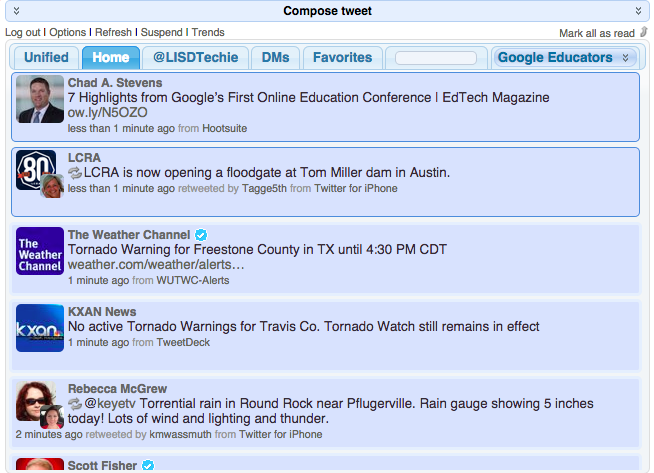
Summary: This extension allows you to interact with your Twitter feed from any open tab/window. You can check your home feed, your mentions, direct messages, favorites, particular feeds from your lists, and compose a tweet. Great extension for anyone who uses Twitter.
It has been a great journey showcasing my favorite Chrome extensions. Look for other recommendations in the future.
With that being said, I hope you have found these posts beneficial. People say that you always keep the best for last and I truly feel that this post might be the best. The first three extensions showcased below can be game-changers in the classroom. Enjoy!!!
#1: Google Tone
Type: Accessibility
Summary: This is a new Chrome extension that will transform the way that teachers share online resources with students. The extension is similar to the app Chirp in that it allows someone to transmit a URL to other people via sound. All parties must have the extension downloaded and enabled for it to work. When you want to share a URL, simply click the extension icon and every computer within earshot will receive a popup with a link to the URL.
#2: DocentEDU
Type: Social & Communication
Summary: This extension allows you to easily highlight text, add comments, embed videos, and add discussion to an online website. Assign the websites with the added resources to students. This extension is great for adding to already existing information. Teachers can create all inclusive lessons with this extension.
#3: Appear.in
Type: Social & Communication
Summary: I just recently learned about this website/extension and I see so many possibilities. Appear.in lets you start a video conversation with anyone right in the browser, without the need to download and install anything, or register an account. Invite up to 8 people to a video conversation just by sending them a link. You can claim a 'room,' which means that you have that URL to use whenever you need. You can share your screen with the viewers which is great for demonstrations or tutorials.
#4: Silver Bird
Type: Social & Communication
Summary: This extension allows you to interact with your Twitter feed from any open tab/window. You can check your home feed, your mentions, direct messages, favorites, particular feeds from your lists, and compose a tweet. Great extension for anyone who uses Twitter.
It has been a great journey showcasing my favorite Chrome extensions. Look for other recommendations in the future.
Mash-Up: Google Slides + Photos to Create Master Slides
As the end of the year approaches there are more and more research projects being done in the classrooms. Here is a quick tutorial to show you how you can manipulate the master slides in order to create beautiful presentations.
Click out my Stock Photos page to find additional websites with copyright friendly photos.
Click out my Stock Photos page to find additional websites with copyright friendly photos.
Favorite Chrome Extensions - Week of May 11th
Here are my Chrome extension picks for the week. Hope you find a new one.
#1: Google+ Notifications
Type: Social Networking
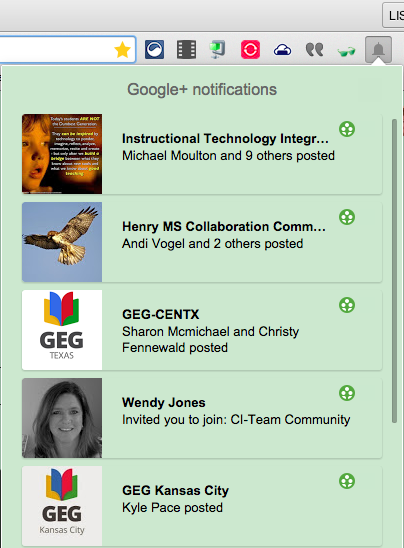
Summary: This extensions shows you your Google+ Notification alerts on the browser bar. Never miss another notification.
#2: Care Your Eyes
Type: Accessibility
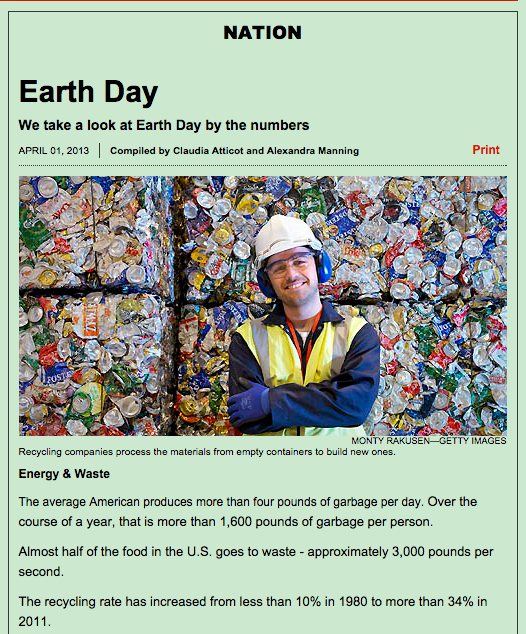
Summary: If you are like me then you spend a lot of time staring at a computer. This extension has helped the strain on my eyes. You have the ability to change the color and limit the color change to certain parts of the webpage.
#1: Google+ Notifications
Type: Social Networking
Summary: This extensions shows you your Google+ Notification alerts on the browser bar. Never miss another notification.
#2: Care Your Eyes
Type: Accessibility
Summary: If you are like me then you spend a lot of time staring at a computer. This extension has helped the strain on my eyes. You have the ability to change the color and limit the color change to certain parts of the webpage.
 |
| Reseda Mode |
#3: Similar Sites Pro
Type: Search Tools
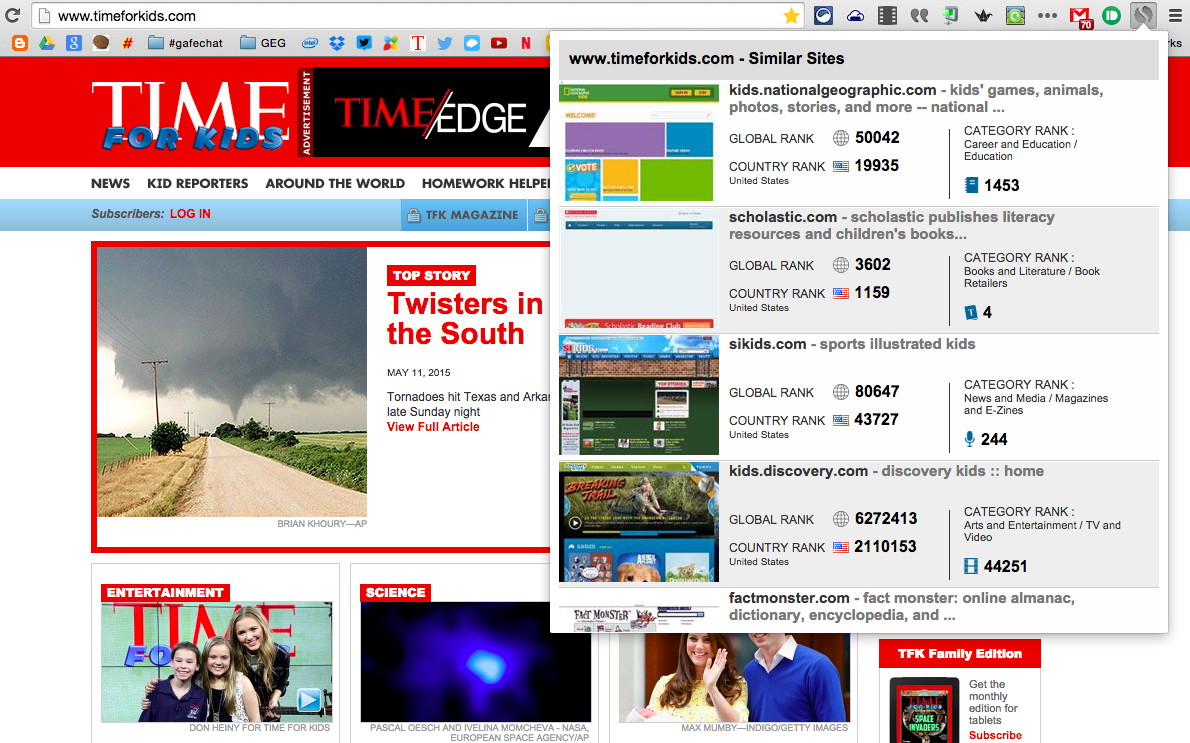
Summary: This extension is great for helping to find sites that are similar to the one you are viewing. Click the extension when you are on a site and other sites will appear. It even gives you a global and US rating of the similar sites.
#4: YoWeather Window
Type: News & Weather
Summary: Instantly get the current weather. Nothing fancy about this, but a great way to quickly check the weather before heading outside.

Type: Search Tools
Summary: This extension is great for helping to find sites that are similar to the one you are viewing. Click the extension when you are on a site and other sites will appear. It even gives you a global and US rating of the similar sites.
#4: YoWeather Window
Type: News & Weather
Summary: Instantly get the current weather. Nothing fancy about this, but a great way to quickly check the weather before heading outside.

Favorite Chrome Extensions - Week of May 4th
Here are my picks for the week. Hope you find a Chrome extension you will come to love.
#1: Search+ for Google Chrome
Type: Productivity
Summary: Instantly search Google+ from the omnibar.

#2: Chrontabs
Type: Productivity
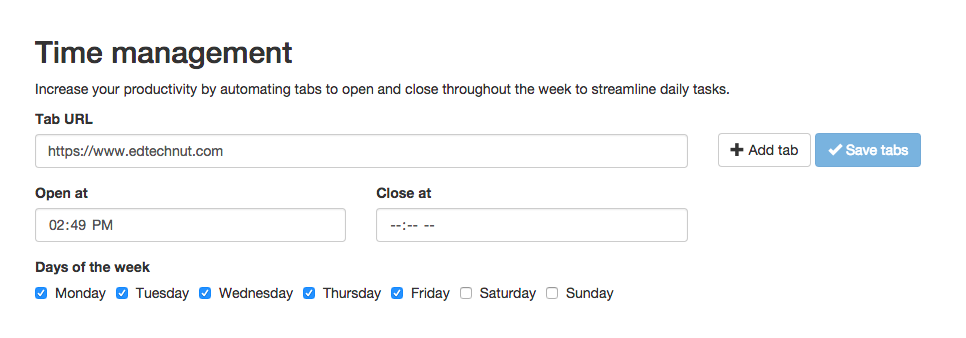
Summary: This tab can help you stay on top of tasks that you need to complete on a daily or weekly basis. Set websites to open (and close) at specific times of the day.
#3: Tab-Snap
Type: Productivity
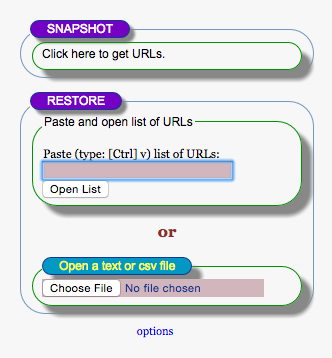
Summary: Create a list of all the open tabs. While you can restore a list of URLs you have to come across that list to open all of the tabs at once. I see this more for teachers being able to copy a list of all of the URLs to share with students. Or the students can then copy that list and paste it into the restore to have all of the tabs opened up at once.
#4: Search Preview
Type: Search Tools
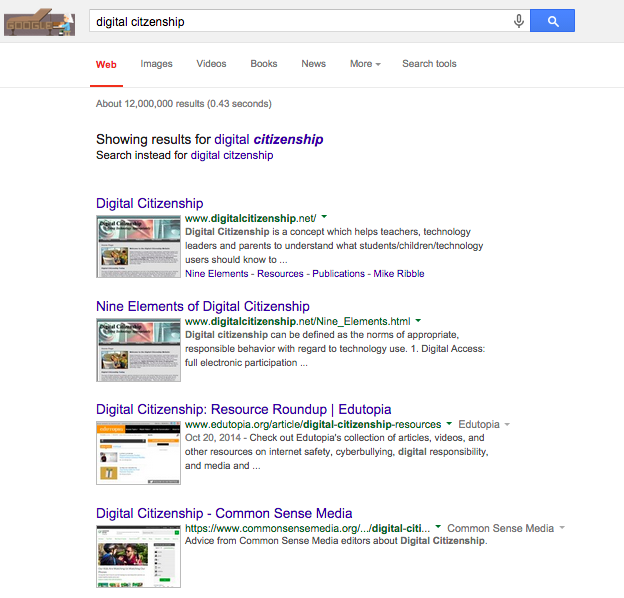
Summary: Enhances your search pages by inserting preview images and related links to the sites that appear. This feature is supported in Google, DuckDuckGo, Yahoo and Bing.
#1: Search+ for Google Chrome
Type: Productivity
Summary: Instantly search Google+ from the omnibar.
#2: Chrontabs
Type: Productivity
Summary: This tab can help you stay on top of tasks that you need to complete on a daily or weekly basis. Set websites to open (and close) at specific times of the day.
#3: Tab-Snap
Type: Productivity
Summary: Create a list of all the open tabs. While you can restore a list of URLs you have to come across that list to open all of the tabs at once. I see this more for teachers being able to copy a list of all of the URLs to share with students. Or the students can then copy that list and paste it into the restore to have all of the tabs opened up at once.
#4: Search Preview
Type: Search Tools
Summary: Enhances your search pages by inserting preview images and related links to the sites that appear. This feature is supported in Google, DuckDuckGo, Yahoo and Bing.
Favorite Chrome Extensions - Week of April 6th
Here are my Chrome Extensions for the week.
#1: Tab Packager
Type: Productivity
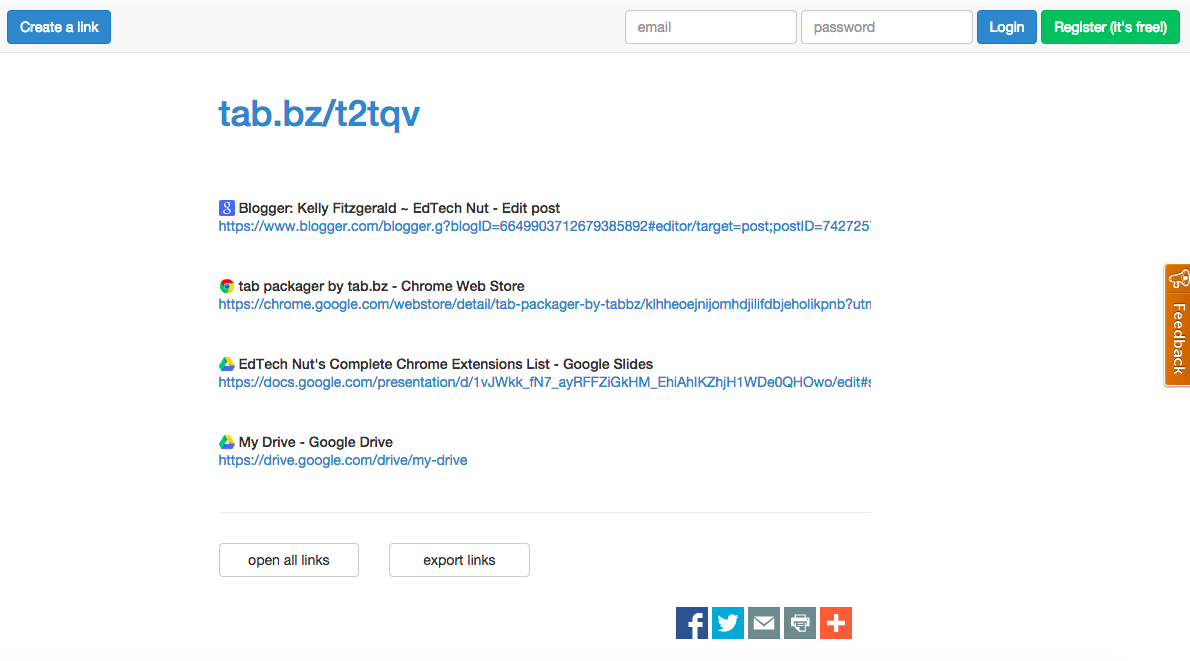
Summary: This extension is amazing when you want to share multiple links with people. Click on the extension and it will turn all of your open tabs into one shortened link. Share that one link with people. When someone opens your link a page will appear with all of the links you had copied. You also have the ability to share the link directly with several social networking sites and email.

#2: Synergyse
Type: Productivity
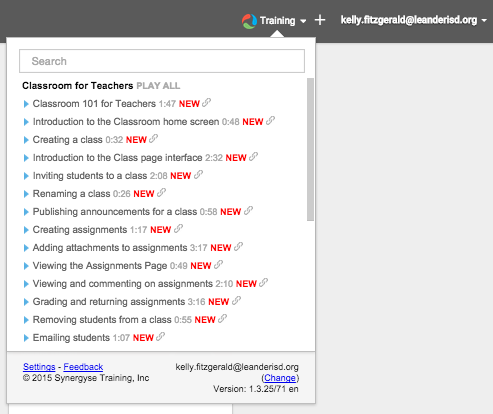
Summary: This is a must have extension for anyone who is a Google user. It will give you interactive, in application training for the Google tool. When enabled it will give show the Synergyse icon, simply click on the icon and it will show you all the video tutorials for the tool.
#3: AdGuard Adblocker
Type: Productivity
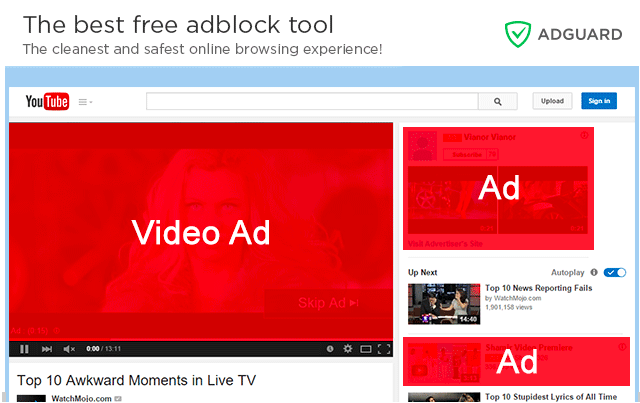
Summary: Unmatched adblock extension against advertising and pop-ups. Blocks ads on Facebook, Youtube and all other websites. It has a 5 star rating from 7,300 ratings. With this extension those annoying ads disappear. I am especially happy to see those video ads that play prior to the video disappear.
#4: Picture in Picture Viewer
Type: Productivity
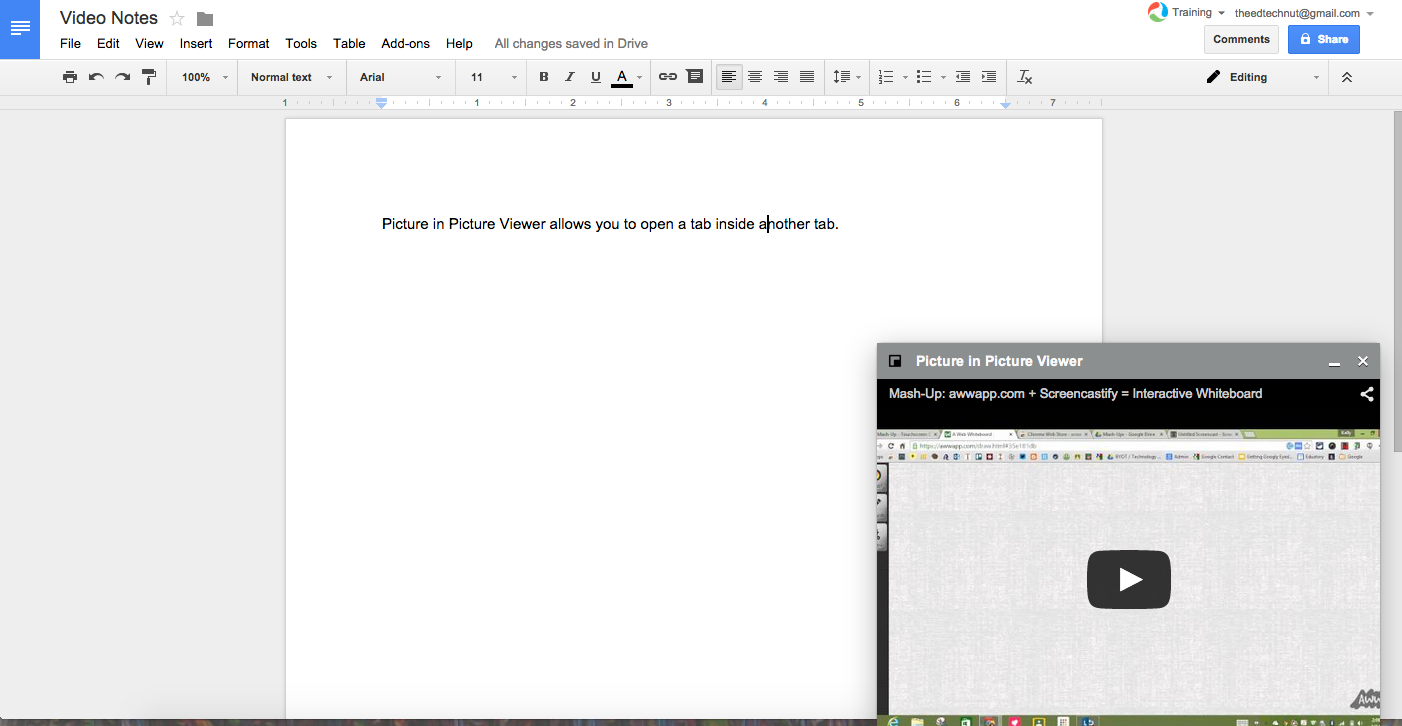
Summary: This allows you to have a tab open inside another tab. This is great for watching a video and taking notes, having your Google Hangouts window open while working, and more. You must enable panels for this extension to work. To do this follow these steps:
#1: Tab Packager
Type: Productivity
Summary: This extension is amazing when you want to share multiple links with people. Click on the extension and it will turn all of your open tabs into one shortened link. Share that one link with people. When someone opens your link a page will appear with all of the links you had copied. You also have the ability to share the link directly with several social networking sites and email.
Type: Productivity
Summary: This is a must have extension for anyone who is a Google user. It will give you interactive, in application training for the Google tool. When enabled it will give show the Synergyse icon, simply click on the icon and it will show you all the video tutorials for the tool.
#3: AdGuard Adblocker
Type: Productivity
Summary: Unmatched adblock extension against advertising and pop-ups. Blocks ads on Facebook, Youtube and all other websites. It has a 5 star rating from 7,300 ratings. With this extension those annoying ads disappear. I am especially happy to see those video ads that play prior to the video disappear.
#4: Picture in Picture Viewer
Type: Productivity
Summary: This allows you to have a tab open inside another tab. This is great for watching a video and taking notes, having your Google Hangouts window open while working, and more. You must enable panels for this extension to work. To do this follow these steps:
- Go to chrome://flags/
- Search for 'enable flags' using Control/Command + F
- Click enable under 'Enable Panels'
Favorite Chrome Extensions - Week of March 23rd
My favorite extension this week are all centered around my favorite topic, Google. Many of you might already be aware of these extensions, but I felt it important to share for those who might not know.
#1: Google Voice
Type: Productivity
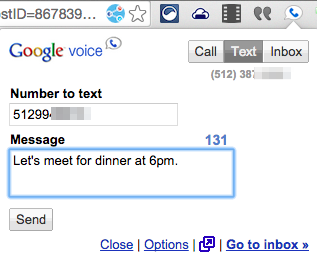
Summary: Make calls, send SMS, preview Inbox, and get notified of new Google Voice messages on your computer. This extension is only available for United States numbers.
#2: Google Mail Checker
Type: Productivity
Summary: Displays the number of unread messages in your Google Mail inbox. You can also click the button to open your inbox.
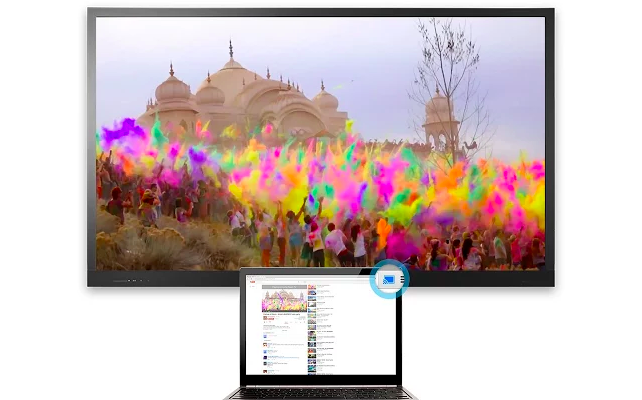
#3: Google Cast
Type: Productivity
Summary: Send content to your Chromecast and other devices that support Google Cast. I use this one personally to stream to my TV, but I know teachers out there are using it in their classrooms as well.
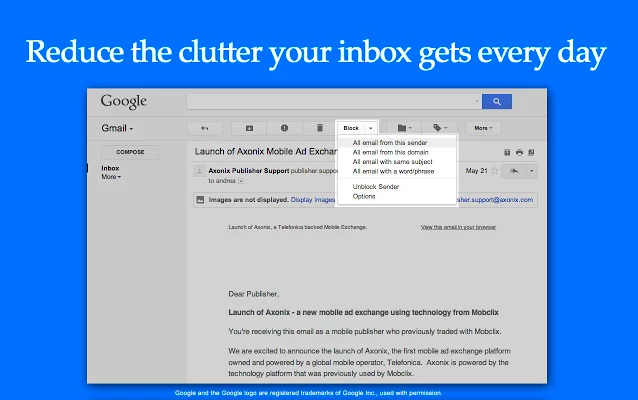
#4: Block Sender (for GMail)
Type: Productivity
Summary: Block annoying emails in Gmail. Say goodbye to unwanted newsletters, individuals, and other uninvited email senders. Note: free version allows a couple blocks, but there is a paid subscription available.
#1: Google Voice
Type: Productivity
Summary: Make calls, send SMS, preview Inbox, and get notified of new Google Voice messages on your computer. This extension is only available for United States numbers.
Type: Productivity
Summary: Displays the number of unread messages in your Google Mail inbox. You can also click the button to open your inbox.
Type: Productivity
Summary: Send content to your Chromecast and other devices that support Google Cast. I use this one personally to stream to my TV, but I know teachers out there are using it in their classrooms as well.
#4: Block Sender (for GMail)
Type: Productivity
Summary: Block annoying emails in Gmail. Say goodbye to unwanted newsletters, individuals, and other uninvited email senders. Note: free version allows a couple blocks, but there is a paid subscription available.
Mash-Up: www.newsela.com + Awesome Screenshot Minus = Interacting with Online Text
This mash-up is going to showcase two tools: www.newsela.com and Awesome Screenshot Minus Chrome extension (the original post was created using Awesome Screenshot, but that extension has since gone away. Awesome Screenshot Minus is a replacement extension). Mashed together gives the students the ability to interact with online text. This one is not touchscreen computer compatible, which means students will need to use the touchpad or mouse to engage with the tools.

Newsela is a website that allows teachers/students to change the article's reading level by the lexile number. This will allow you to assign the same article at different reading levels. Great for having all students participate in a class discussion around the same topic, while allowing the students the ability to read the article at their respect reading level.
Awesome Screenshot is a Chrome extension that allows you to take a screenshot of the entire webpage and then interact by highlighting, adding text, drawing, etc. The screenshot with annotations can then be shared to Google Drive.
Newsela is a website that allows teachers/students to change the article's reading level by the lexile number. This will allow you to assign the same article at different reading levels. Great for having all students participate in a class discussion around the same topic, while allowing the students the ability to read the article at their respect reading level.
Awesome Screenshot is a Chrome extension that allows you to take a screenshot of the entire webpage and then interact by highlighting, adding text, drawing, etc. The screenshot with annotations can then be shared to Google Drive.
Mash-Up: awwapp.com + Screencastify = Interactive Whiteboard
I am starting a new series called Mash-Up. The idea came to me as I was thinking about the popular App Smashing concept. In App Smashing students use 2 more more iOS or Android applications to create a product. Mash-Up is going to show how to combine 2-3 web-based tools. For all the educators out there who don't have student iPads, this is for you.
In this first Mash-Up I will showcase how to use awwapp.com, a web whiteboard, and Screencastify, a Chrome extension, to create an interactive whiteboard.

In this first Mash-Up I will showcase how to use awwapp.com, a web whiteboard, and Screencastify, a Chrome extension, to create an interactive whiteboard.
I hope you will find this new series useful. There is no set schedule for when videos will come out, but stay tuned because more are on the way.
Favorite Chrome Extensions - Week of March 2, 2015
Here are my top picks for the week. Hope you find at least one new extension to fall in love with.
#1: Google Calendar (by Google)
Type: Productivity
Summary: If you use Google Calendar, then this is a must have extension. It allows you to quickly see your calendar from any open window/tab. You also have the ability to add a new event from the extension.

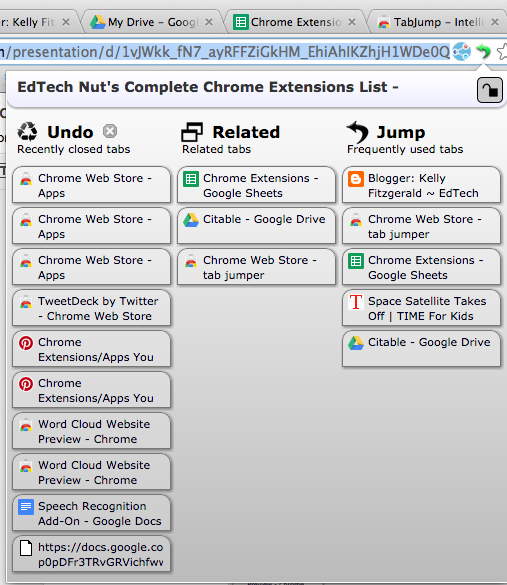
#2: TabJump
Type: Productivity
Summary: This extension is for all of you tab hoarders out there. You know the ones that have so many tabs open that they have a hard time finding the one they want. With TabJump you can quickly open a pop-up window that shows you the tabs you have open, so you can choose the right one in an instant. It also shows you recently closed tabs and open tabs that are related to the one you have currently on.
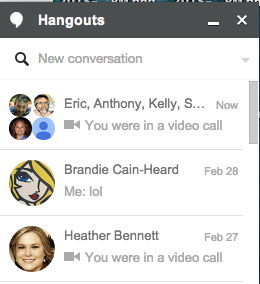
#3: Hangouts
Type: Social & Communication
Summary: This extension will keep Google Hangouts running on your computer, so you are always available. I always have this extension running so that people know when I am online and can contact me with questions or just want to chat.
#4: Start.Me
Type: Productivity
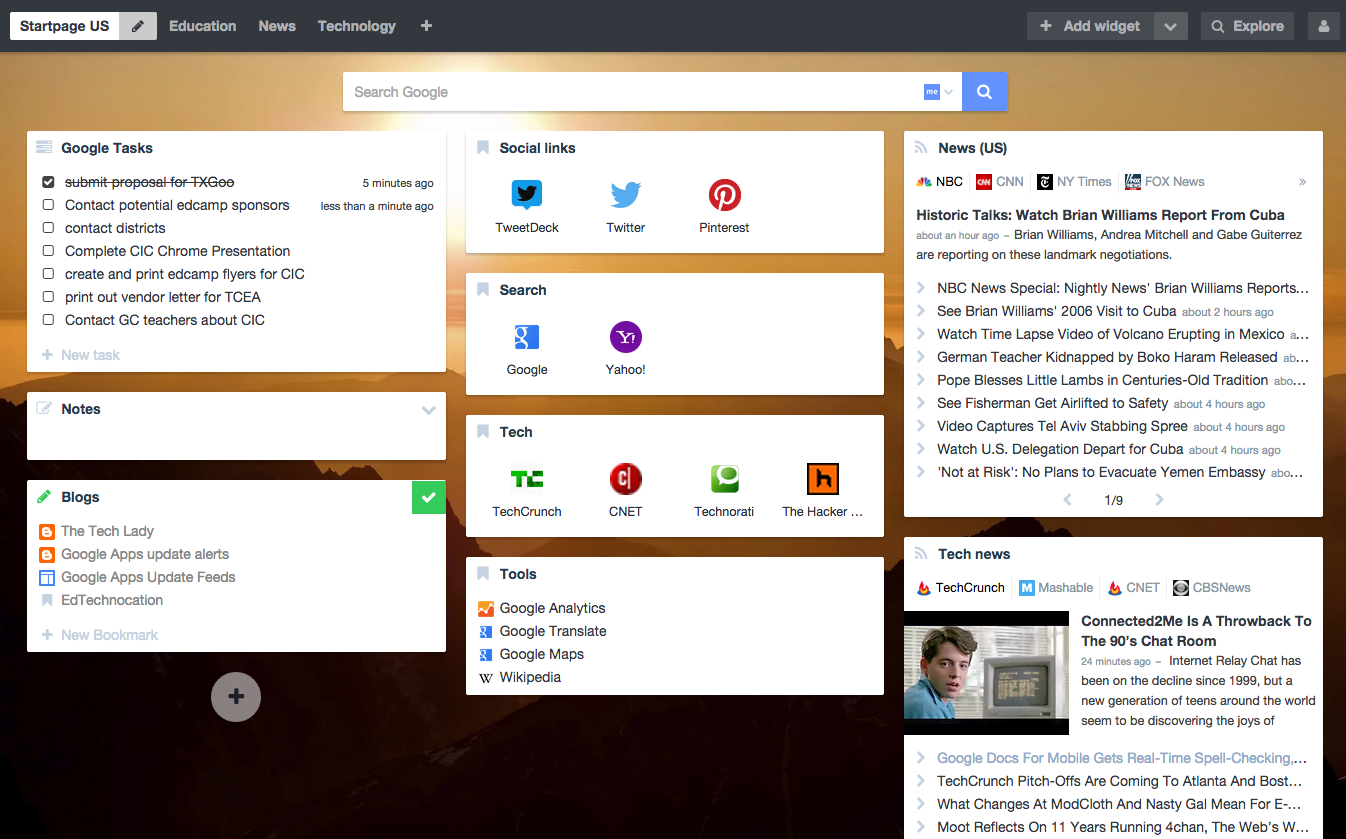
Summary: Finding the perfect browser start up page has been a battle for me. I find ones that I like for a while, but there is always something that seems to be missing. I have been using this extension for over a month now and am pretty pleased. There are a bunch of different widgets that you can add the page, so you tailor it to your likes and needs. This is definitely an extension that is worth a try if you are like me and want a customized homepage.
Want to learn more about Chrome? Check out my tutorial here.
#1: Google Calendar (by Google)
Type: Productivity
Summary: If you use Google Calendar, then this is a must have extension. It allows you to quickly see your calendar from any open window/tab. You also have the ability to add a new event from the extension.
#2: TabJump
Type: Productivity
Summary: This extension is for all of you tab hoarders out there. You know the ones that have so many tabs open that they have a hard time finding the one they want. With TabJump you can quickly open a pop-up window that shows you the tabs you have open, so you can choose the right one in an instant. It also shows you recently closed tabs and open tabs that are related to the one you have currently on.
#3: Hangouts
Type: Social & Communication
Summary: This extension will keep Google Hangouts running on your computer, so you are always available. I always have this extension running so that people know when I am online and can contact me with questions or just want to chat.
#4: Start.Me
Type: Productivity
Summary: Finding the perfect browser start up page has been a battle for me. I find ones that I like for a while, but there is always something that seems to be missing. I have been using this extension for over a month now and am pretty pleased. There are a bunch of different widgets that you can add the page, so you tailor it to your likes and needs. This is definitely an extension that is worth a try if you are like me and want a customized homepage.
Want to learn more about Chrome? Check out my tutorial here.
Subscribe to:
Posts (Atom)