Showing posts with label teachers. Show all posts

15 Integration Ideas for Teaching with Maps

Last Tuesday's #gafechat discussion I posed various scenario questions. One of the questions pertained to students learning about various locations in the world via maps. 


Here are the technology integration ideas that stemmed from our discussion. 

Have the students...

  1. use Periscope to see the world through the eyes of someone else. (@AlexaSchlechter)
  2. use My Maps to build collaborative maps with placemarks, video and images. (@alicebarr@THLibrariZenShakeUpLearningLISDTechie)
  3. show the different locations with streets, buildings, etc. via Google Earth.(@MLunoff)
  4. take a screenshot of the map using Awesome Screenshot Minus and annotate/add text. (@SPFTech_Treglia)
  5. build a tour around the world using Google's TourBuilder, so they can add text, images, videos and more. (@jcalvert4@LISDTechie)
  6. add maps to a Google Drawing or Google Slides and collaboratively add information about the location. (@MLunoff)
  7. build a map using Google Maps and a Fusion Table. (@VCSataylor)
  8. explore the locations via Google Maps/Earth street level. (kilgoretech)
  9. find locations via a scavenger hunt on Google Maps that ties to political and cultural geography. (@MattHarrisEdD)
  10. use Screencastify to record a video explaining how they used websites to identify the locations. (@MLunoff)
  11. identify locations via GeoGuessr, a game that requires you to guess a particular location based on street view. (@bluebutterflysm@MathDenisNJ )
  12. create an interactive map using batchgeo.com and Google Forms. (@kilgoretech)
  13. label a map using Thinglink - a tool that allows you to add text, videos, images and more. (@curryhj2000@AlexaSchlechter
  14. use Google Cardboard to experience locations around the world. (@LISDTechie)
  15. use Scribble Maps to build an interactive map. (@LISDTechie)


Here are some addition resources to help with your integration:
Around the World in 60 Minutes by Michelle Armstrong


Great Websites to Find Royalty Free/Creative Common Images

Many people forget that using someone else's image can violate copyright law. Here are some websites teachers and students can use to ensure they aren't breaking the law. 

Google Images
When finding an image on Google, it is important to change the usage rights to ensure the image is free to use. 


If you plan on changing the image in any way make sure to select one of the 'with modification' options. 


Pixabay
This site has nice royalty free images and you can log in with your Google account. 

Pics for Learning
Find safe photos to use in class with no login required. You also have the option to save the image to your Drive.

Photos for Class
This site has safe G rated images from the the makes of Storyboard That. There is no login required to download the images. 

Check out my page for more websites with creative commons photos. Happy image hunting!


Revision History: Great Feature in Google Drive

Revision history gives teachers and students a record of the additions, changes and deletions that are made on a Google document, spreadsheet, slide, or drawing. You must be an owner of editor of the file in order to access revision history. 

Here is a quick demonstration on how it works:


Google Translate App: Not Just for Foreign Language Classes

I was honored to be invited as a guest contributor on Friday's Google User Group Hangout Meeting with Eric Curts to talk about the Google Apps for Education Twitter chat that I recently started (#gafechat). The Google User Group is a monthly Hangout on Air that showcases the latest updates that Google has put out in the past month. 

During this meeting I learned about Google's latest update to the Google Translator mobile iOS and Android app. The app can now listen for two languages at a time and translate written text using the camera. Although this is not a new feature, I have to mention that the app does speak the word/phrase as well as show the written text. 

I am going to highlight how to use the app in the context of real classroom examples. Before I do let me start by saying, I know that there is no such thing as a perfect translation tool. I am not suggesting that you go out and write a book in another language using this app. I do however think this is a great tool to be used in an informal setting.

Example 1: Parent/Teacher conferences where no common language is spoken
I used to teach in an area where Spanish was the dominant language spoken by parents. Unfortunately, Spanish is not a strong suit for me and so there was a language barrier. I know I was not alone in this struggle. Using the microphone feature of the app can help eliminate that "uncomfortableness" for both the parents and teacher. There are 90 languages available to choose from and the app will listen for both languages selected so no need to switch back and forth. 

Here are some additional examples of how to use this feature:
  1. Between a student new to the country and teacher/student who doesn't speak the student's language.
  2. A student who is practicing communicating in a foreign language. 
  3. A student who wants to practice pronunciations of certain words or phrases. 


Example 2: A student new to the country can use it to help understand the environment around them.

Speaking a foreign language is one thing, but understanding it in written form is another. A new feature of this app is the ability use the camera to instantly translate signs and text. This is feature is available for English, French, German, Italian, Portuguese, Russian Spanish.

Here are some additional examples of how to use this feature:
  1. Teacher can put signs around the room and students can check for understanding.
  2. Students can use it to help them study.


Example 3: Students can practice writing in a foreign language.
The text feature is nothing new, but definitely worth mentioning. This is a great way for students to be able to practice writing in a foreign language and getting instant feedback.

Here are some additional examples of how to use this feature:
  1. Teacher can communicate with a student who doesn't speak the language well.
  2. Students can use it as a "texting" platform to practice having a non-verbal conversation.

Again, I am not showcasing this app as a perfect translation tool. But when there is a barrier between two people because of language, this tool can help bring that barrier down. Plus I am finding it so much fun to "play" with.


Favorite Chrome Extension of the Week - December 1st

This week's focus is on using Chrome extensions to help you research on the web. These are great extensions for teachers and students.

#1: Tab Resize
Type: Productivity
Summary: This extension is similar to Tab Scissors and Tab Glue, but on steroids. It allows you to choose an already existing layout, create your own, undo, and add blank tabs to the layout. I do believe this is my new go to extension when I want to create a new tab layout. It even supports multiple monitors, which makes be every happy. Here is a YouTube video showing how it works.


#2: Highlight to Search
Type: Search Tools
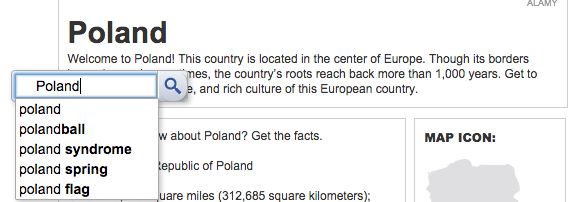
Summary: This makes searching on the web easy. Simply highlight text from an article on the web and a search icon will appear. It will even show you recommendations from the highlighted text. 


#3: Search All
Type: Search Tools
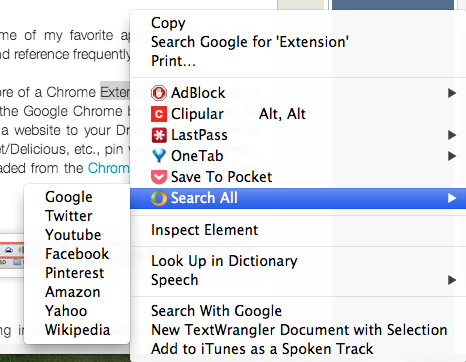
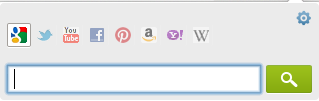
Summary: Quickly and easily find information from multiple search engines with this extension. Highlight the text you want to search, right click and choose the search engine from the available list. If you want to start a new search, click the extension and a pop-up will appear. Simply type in your terms and choose the search engine.


#4: Clearly
Type: Productivity
Summary: Strip extraneous images and distractions on webpages to make a  "clear" set of text to read. Highlight text, send the clip to Evernote account.


Before

After


Get Student Feedback Using Geddit

I just discovered Geddit and am in love. This is an awesome assessment for learning tool. 


Here is why Geddit is so awesome!

Student Accounts
Student have the ability to sign in with a Google account or create an account. Students do NOT need an email address to create an account. They can give a username instead. 

Once they have logged in to Geddit, the teacher will give the students a code to join his/her class.

Students Can Check-in
Geddit allows students to "check-in" with the teacher to let them know how they are feeling about the lesson. The teacher is the only person who can see the students' response, so they can answer without fear of judgement. Here are the students' choices:

  • I don't understand this :(
  • I think I get it?
  • I'm OK with this
  • I've got this
  • Easy, I could teach my friend

Teachers Can Push Out Questions
Teachers can create separate lessons filled with questions to ask students. The teacher then pushes out each question to all the students at the right time. Teachers have the ability to create standard questions (multiple choice, short answer, long answer, or poll) or a math question. 

There is even the ability to ask a question on the fly, by creating a quick question. For the quick question the students will see A-D for multiple choice, T/F for true and false, box for short answer and A-D for a poll. Verbally give the students the question and answer choices and push out a quick question. 

If your classroom is not 1:1, that is okay. Ask questions where students have to answer in a group.

Show Students Class Data
Teachers have the ability to share with students how the class as a whole answered a question. It will not show the students individual answers. Teachers can use this to have class discussions on why some students might have answered a particular way. 

Student Data
Teachers can pull up individual students to see how they answered all of the questions, as well as send them a private message that will show up only on their screen. This is a great way to redirect a student without embarrassing them or give a student encouragement when you see they are frustrated. 

Share Lessons with Other Teachers
After the lesson ends the teacher can export the data to see how all students performed and get a whole class picture. You can also share your lessons with your colleagues, so they do not have to reinvent the wheel. No student data will be transferred when you share a lesson. 


If you haven't tried Geddit, I highly recommend you check it out. 

Google Classroom Helpful Tips and Integration Ideas

I am so excited that Google Classroom is starting to take off in my district. It is such an easy tool to use and it's free! Who does not love free tools!

I get questions about Classroom almost on a daily basis. I have compiled some helpful tips and integration ideas in this Google presentation. I will add more tips and ideas as they surface. Some of the ideas are my own (not that anyone else hasn't thought of it) and some I have gotten from other people (which is noted). 

Here are a few things included:

  • Using a capacity matrix to guide students
  • Numbering assignments
  • Grading with zero or one
  • Class discussion ideas
  • Sharing resources
  • And more...
Hope you enjoy!


Chrome Extensions of the Week - September 29th

While most of my Chrome extensions are picked for educators, this week they are universal and can be used by anyone.


#1 Subscriptions Grid for YouTube
Type: Productivity
Summary: This is a great extension for anyone who follows subscriptions on YouTube. It turns the list that you normally get into a grid of videos, so you are able to see more at once. 


#2 EasyBib Tools
Type: Productivity
Summary: If you are like me you can't keep up with how to properly create a bibliography. With this extension you don't have to memorize all of the rules. It creates the bibliography for you from the website you are visiting and gives you the option to save for later, save as a Google document or print as a Word document. Another bonus feature is that it will let you know if the website is credible or not based on other users feedback. 


#3 Copy All URLs
Type: Productivity
Summary: This is an educators dream! Open all of the resources you want to share in separate tabs and in one click it will copy all of the URLs for you. Now you can paste them all at once instead of going back and forth between the document, email, or any other way you want to share the websites.


#4 Custom Google Background
Type: Fun
Summary: This allows you to make a unique Google homepage by providing your own image or searching the web for one. You also have 10+ ways to personalize the homepage, such as hiding the Doodle icon, make the search bar stealth (as in the picture below), and much more. 


Check out my Chrome Extension page for past recommendations. 

Chrome Extensions for the Week of September 22nd

Hello, my name is Kelly and I am a Chrome Extension addict. I know there are people far worse out there than me, but I can't help myself. Here are my Chrome Extensions for the week. 


#1 Deelete
Type: Productivity
Summary: This is a relatively new extension by Daniel Sosa. He contacted me via Twitter almost a week ago and asked if I would give his extension a try. So like any good Chrome Extension addict, I did. I LOVE it. While it might not be perfect for everyone it is perfect for me. In my job I download a lot of items (articles, pictures, etc.) from the internet. Deelete gives you the option of keeping the download or having it automatically deleted in 24 hours. If you are the same way and download a lot of web resources then you need to give this extension a try. 


#2 MakeGIF Video Capture
Type: Blogging (I put it in my video section though)
Summary: This extension could entertain me for hours. It allows you to capture videos in your browser and turns them into an animated GIF. To test it out I went to YouTube and played a video. I selected the extension icon and a pop-up appeared that allowed me to start capturing my selection. I pushed done and it turned that portion of the captured portion into a looped video. 
Please click here to see the GIF in action (it is the one in the red box).


#3 Black Menu for Google
Type: Productivity
Summary: If I am going to be honest with you I am not just a Chrome Extension addict. I am a Google addict. I love all things Google! This extensions makes me smile. No longer are the days that you have to open a new tab to get to the Google apps icon. With this app you can now search within Google or open any Google app from the comfort of any open tab.  Genius!


#4 Twitter for Chrome
Type: Social & Communication
Summary: This extension allows you to check your Twitter feed from any webpage. Simply click on the extension icon and your feed automatically appears. It will even give you a count of the number of tweets you have missed since you last opened it. 


Quick Google Sites Tip for Teachers

Yesterday, I got the pleasure of working with teachers on Google at one of our middle schools. We all know that teachers have a million things on their plate and they don't have enough time to get everything accomplished. I shared a little Google Sites tip with them that they seemed very thankful for. 

If you want to share a group of files with your students, place all of the files in a shared Google Drive folder. Insert that Drive Folder onto your Google Site page. Now every time you drop something into that shared folder it automatically appears (upon browser refreshing, of course) on the page with the inserted folder. 

There is no need for placing the file in the shared folder and then going to your Google Site to insert a link or attach the file. Why take 2 steps when you can do it in one! Something so simple can end up saving a teacher a lot of time in the long run. Share the tip with your friends and co-workers. 


Here are directions for inserting the Drive folder. 


10 Ways to Add A Google Calendar Event

One thing I absolutely love about Google Calendar is all the different ways you can add an event. I don't think Google could make it any easier. 

Here is a presentation that I put together on 10 Ways to Add a Google Calendar Event. Feel free to share with others.  
http://goo.gl/DwCHoa

Purpose of Google+ and Hangouts

I will be honest, I am relatively new to Google+. My district has just recently decided to open it up for staff. I felt the need to create resources to help them through the transition. This week I created a Google+ Overview Cheat Sheet, Starting a Google Hangout Cheat Sheet, and Participating in a Google Hangout Video Chat Cheat Sheet.

have gotten a lot of great feedback from those cheat sheets. I love creating resources that others find useful...after all why would you create something that people won't use. 

Now that the basics have been created I feel like I need to address the purpose of using Google+ and Hangouts. 

First off, it is a great tool to use professionally. We teach in a time where teachers should no longer have their "door" closed. I mean that metaphorically, of course. If we expect to make a great impact in education, then we need to come together and collaborate worldwide.  

Google+ opens the door for educators to come together to build a Professional Learning Network (PLN). Here are just a couple ways to build your Google+ PLN:

  1. Find educators you trust and admire and add them to your circles. 
  2. Join a community that specializes in  your interests and/or subject(s) you teach.
  3. Ask questions, request help and find resources through your circles and communities.
  4. Share your resources and ideas.
  5. Lead/Attend a professional development via a Google Hangout Video Chat

I know Google+ is not the only way to build a PLN. I am also active on Twitter and love my Twitter PLN, but why limit myself to only one source. 

Secondly, Google+ is a great tool to use with students. I am going to be working on a resource in the near future that will highlight various ways, but until then let me highlight just a few: 

  1. Participate in a Mystery Hangout - this will introduce students to other students around the world, as well as help them develop their questioning skills. 
  2. Bring experts into the classroom via Hangouts - invite authors, engineers, community members, etc. into the classroom via a Hangout
  3. Have students create study groups
  4. Host tutorials via Google Hangouts Live on Air - have students use the chat feature to post their questions/needs
Here is a link to a blog that was written on Google Hangouts. They shared several ideas, as well as featured one of the resources I created. 

If you are on Google+ please add me and become part of my PLN. 


Chrome Apps and Extensions

I have become a Chrome App and Extension junkie. I truly think I have an obsession or addiction or just plain infatuation. Perhaps it is all three and I am OK with that. I embrace the fact that I AM A CHROME ADDICT. There I said it, so let me see what I can do to get you to become an addict, too.

Chrome Apps are web-based applications that work within the Chrome browser. Some app even integrate with Google Drive. There are apps that allow you to create collages of pictures, edit pictures with effects and text, leave voice feedback on a Google document, access my Kindle books on my computer, and more. The apps that I have downloaded are free and while some have a premium version you can pay for, I have found the free versions to work just great for me.

Chrome Apps can be download from the Chrome Web Store and once downloaded can be found in multiple locations.

Here is a document that I have put together with some of my favorite apps. Of course, this document is a work in progress, so please bookmark it and reference frequently.

I will admit that although I do love the apps I am way more of a Chrome Extension junkie. Chrome Extensions are extra features and functions that modify the Google Chrome browser. You can do things like save tabs for future retrieval, send a PDF of a website to your Drive, create shortened URLs and QR Codes, bookmark websites to Diigo/Pocket/Delicious, etc., pin websites to Pinterest, and so much more. Chrome Extensions can be downloaded from the Chrome Web Store and are housed on your browser toolbar.


You can disable/enable extensions that you aren't using in settings or with one of my favorite extensions called Extensity. Here is a document that I have put together with some extensions that I recommend. Just like the apps document, this list is a work in progress.

I hope you enjoy your summer and get a chance to learn some new Chrome apps and extensions. I tell you once you start downloading you won't want to stop. Hope to see you at the next Google Chrome Addict meeting...oh I should start hosting these...